
|
How To Install a Digital Certificate for W2K |
| Jesse Burkhardt |
* Installing certificates for the use of sercure Windows 2000 web communication is unecessarily complex. This document will only discuss a minimum of information required to perform the installation task as clearly as possible. Technical aspects of the functioning of certificates, certifcate servers, encryption, and other issues related to the implementation of the secure socket layer (SSL) in secure HTTP protocol (HTTPS) is beyond the scope of the document.
This document will enummerate every step required to successfully install a certificate onto a Windows 2000 web server for ensuring secure web transactions. The use of certificates to secure web communications is necessary to protect sensitive information such as credit card numbers which is essential for e-commerce web implementations.
I. Adding the MMC Certificate Snap-In
II. W2K Wizard: New Certificate Request
III. W2K Wizard: Renew Certificate Request
IV. Obtaining the Certificate
V. Backing up the Certificate
VI. Installing the Certificate
I. Adding the MMC Certificate Snap-In
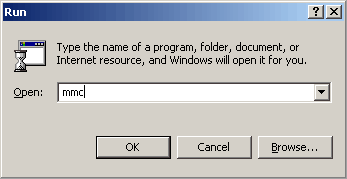
If your web server has not previously had an SSL certificate installed on it then you will need to prepare the server to be able to accept a certificate. You must do this by invoking the Microsoft Management Console (MMC) by typing the command "mmc" into the Run option on the Start Bar. (See illustration below.) The MMC hosts a number of administrative tools for administering services and system components.
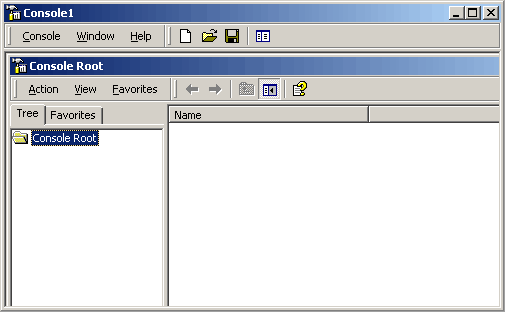
Running the MMC command will bring up the following console interface.
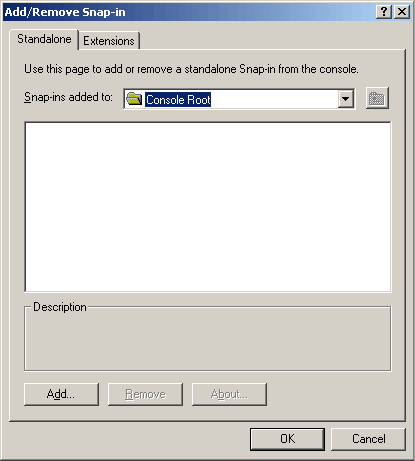
Openning the Console menu and selecting Add/Remove Snap-in will bring up the following interface.
Click on the drop-down menu displaying the Console Root.
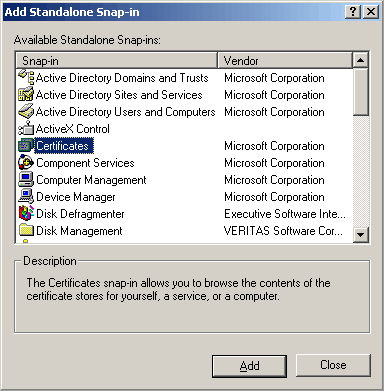
Select the Certificate snap-in from the resulting window (below).
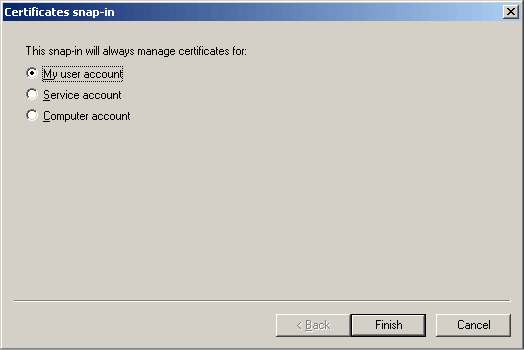
Now select the default certificate manager for My user account. Click the Finish button.
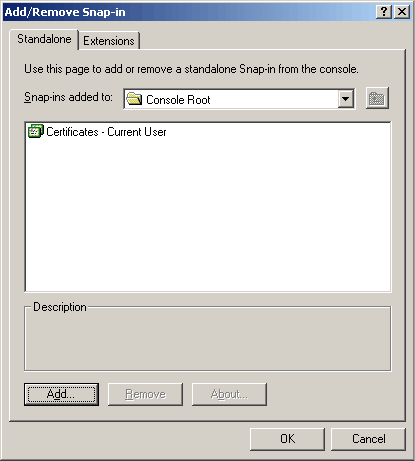
You will now see the following Add/Remove Snap-in interface with the certificate componant dropped into place.
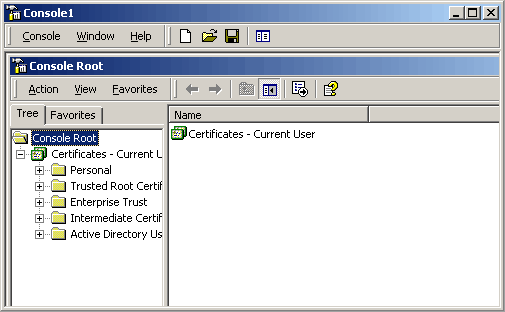
Click OK to close that window, yielding a view of the Console Root with the certificate branch.
Your web server is now ready to be able to make a new certificate request from a provider such as Verisign/Thawte.
II. W2K Wizard: New Certificate Request
To invoke the Certificate Wizard for your Web Server to prepare a certificate request you must first open the Inetnet Information Services (IIS) interface. (In the illustration below you may open IIS by navigating from the Start bar to Administration Tools and then Internet Information Services.)
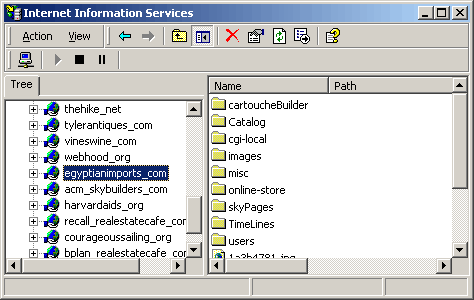
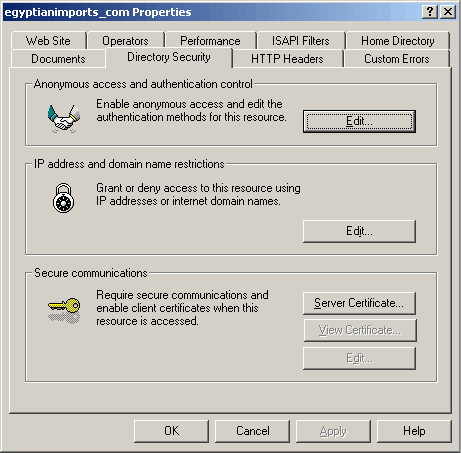
Right click the highlighted web site (egyptianimports.com in this case) and select Properties. Open the Directory Security Tab and click the Server Certificate button in Secure Communications box. (Secure Communications: Server Certificate will be highlighted but View Certificate, and Edit will not be highlighted.)
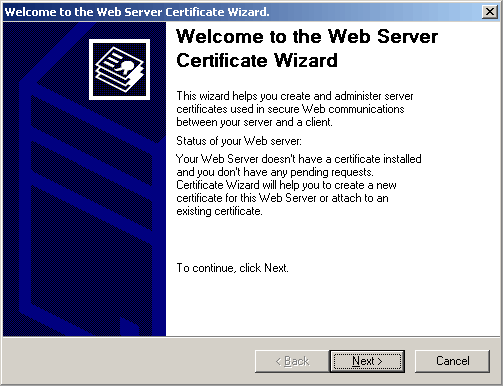
This starts the Web Server Certificate Wizard, click Next.
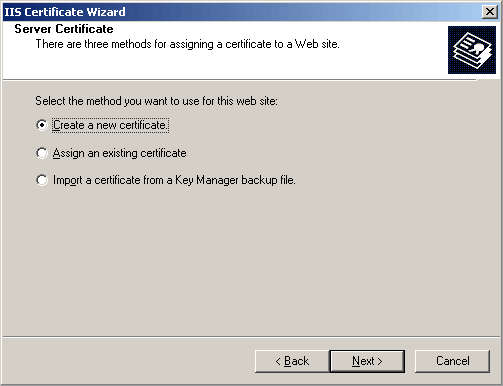
Choose "Create a new certificate".
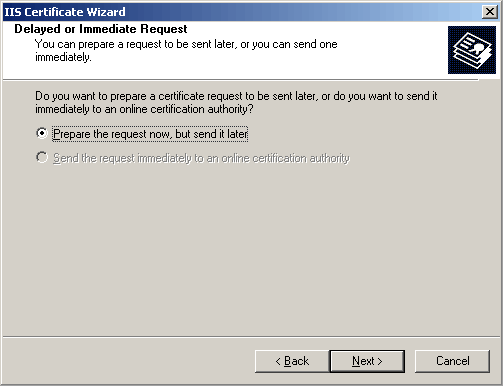
Choose "Prepare the request now, but send it later".
Name to be bound with this instantiation of the certificate to be requested.
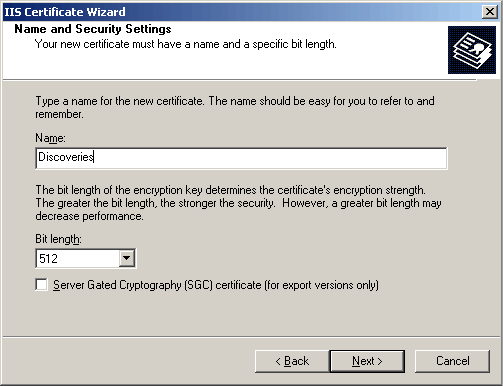
Fill in Organization info.

Fill in the web site domain name associated with this certificate.
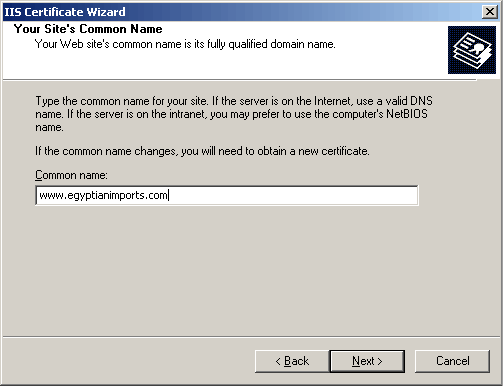
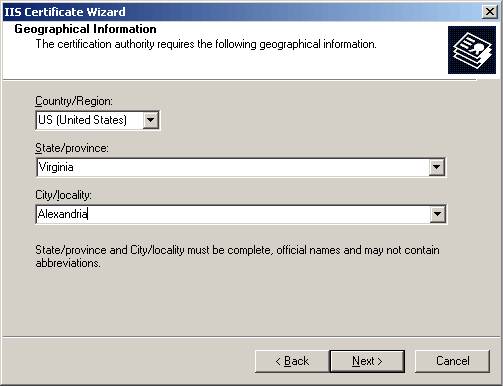
Fill in Geographical Info.
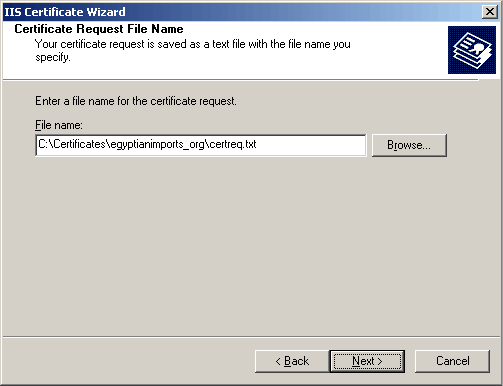
Certificate Request File Name - will default to c:\certreq.txt. If it already exists, choose to replace it. This file happens to be what is otherwise known as the public key.
Request File Summary - click Next.
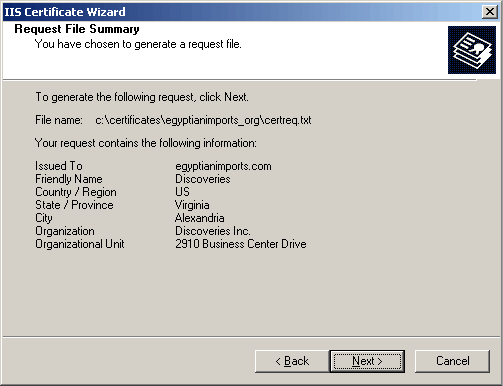
Finish the wizard and click OK.
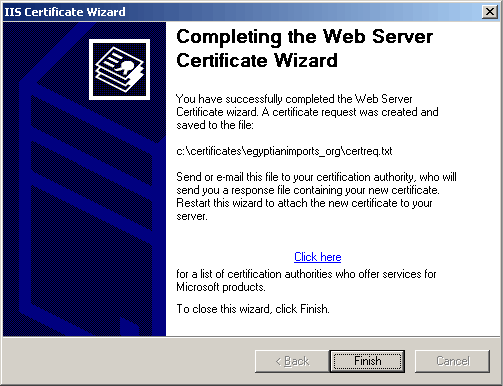
III. W2K Wizard: Renew Certificate Request
A certificate request renewal is similar to forming a new request for one. Many of the IIS security interfaces presented by the certificate request wizard look identical those of a new request. The lanuage and parameter content of these renewal dialogs are, in fact, different from a new certificate request. Additionally the sequence of interace panel presented is fewer as relevant organization information is reused.
As with the new request you enter the process by way of the IIS properties, Directory Security tab, of the web server site to which the certificate will be applied. (Notice how all the Secure communications buttons are available since this is a renewal of a certificate that is still valid, not yet expired.)
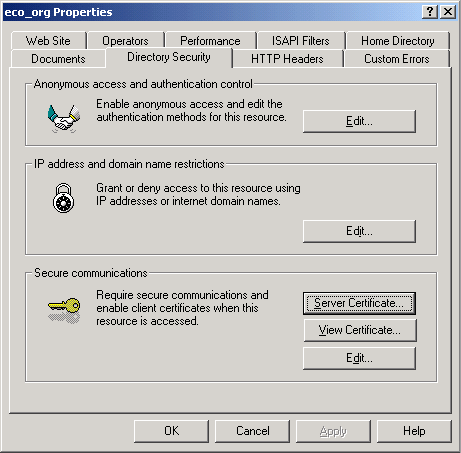
Observe that the Certificate Wizard is aware of the currently active certificate.
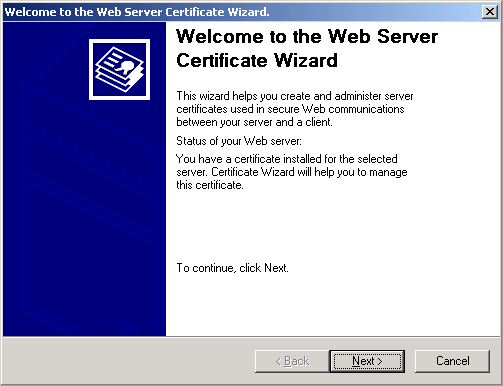
The renew option exists in place of the create option in the corresponding step in generating a new certificate request (prior section, above).
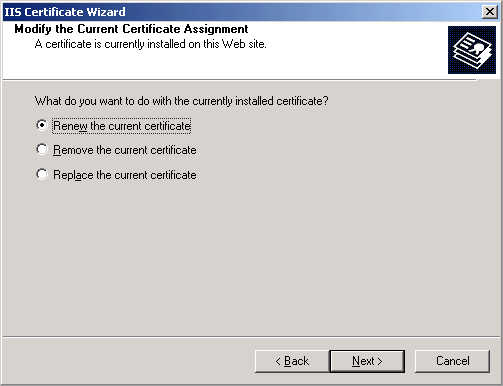
Same as with the new certificate request.
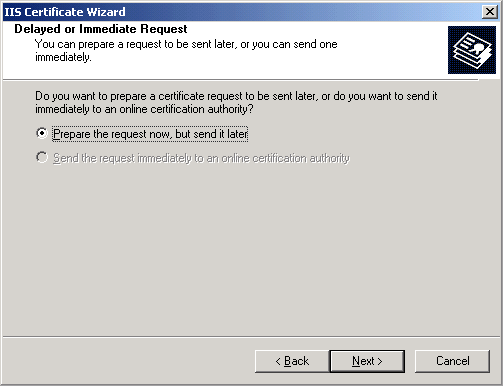
Same as before again, but see how four panel for gethering organization information have been omitted from the process as this information already exists.
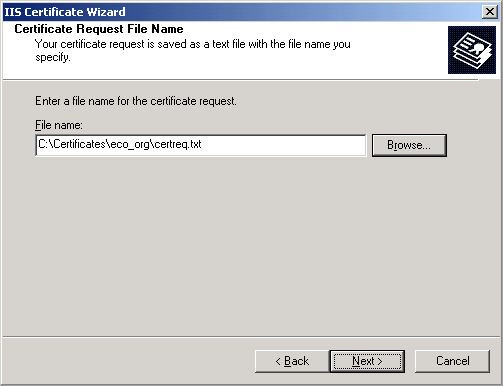
Certifiace web server site information is reused and confirmation displayed.
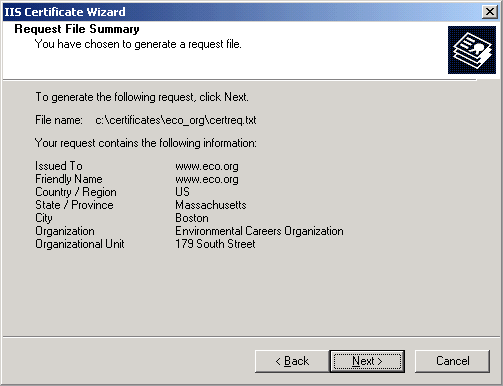
Completion panel is also the same as with the new certificate request process.
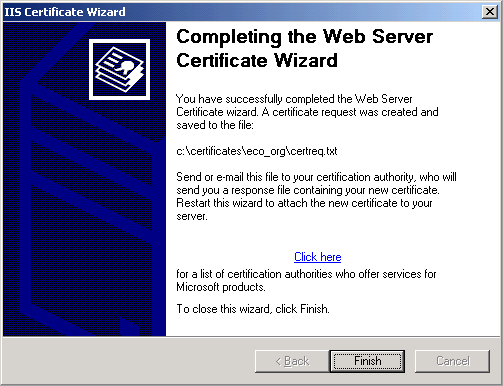
As was the case above, your web server is now ready to be able to make a certificate request renewal from a provider such as Verisign/Thawte.
IV. Obtaining the Certificate
This section will be rewritten with captures of certificate retreival from the actual vendors. The existing examples presently here are from an old installation of our own cerficate server.
Go to Certificate Services Web Site - eg., http://your computer/certsrv (example pictures below, using http://ca.skybuilders.com/certsrv).
Choose "Request a certificate"
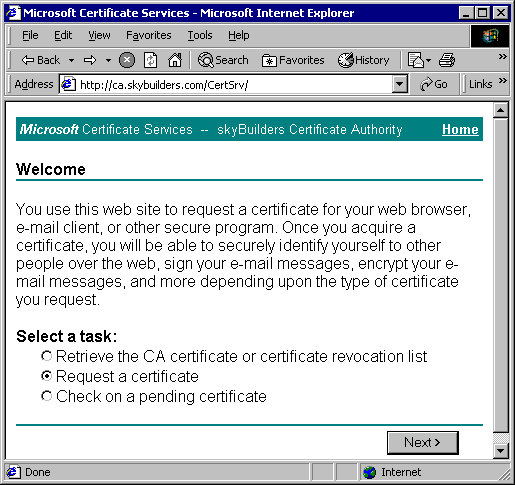
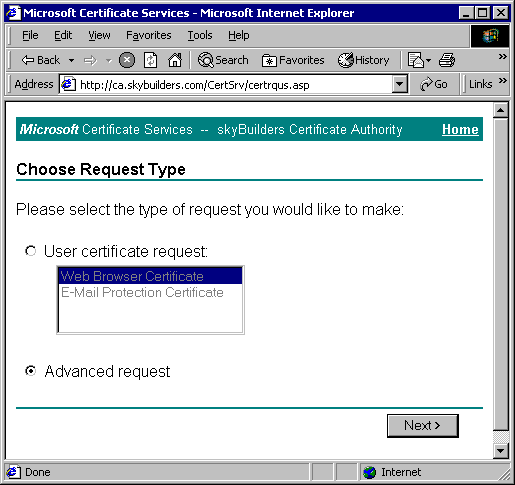
Choose "Advanced Request".
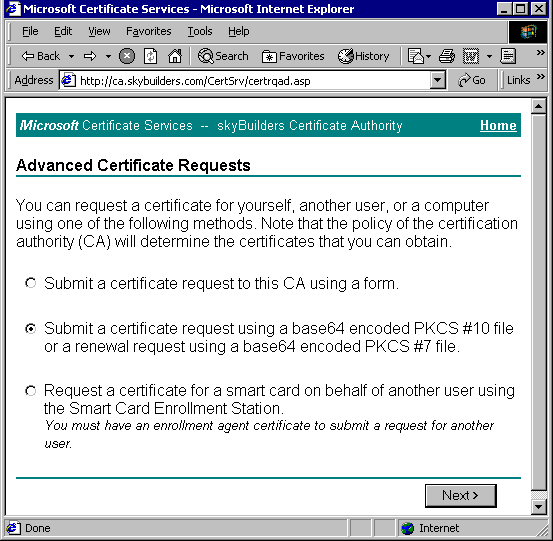
Choose "Submit a certificate request using a base64 encoded PKCS #10 file or a renewal request using a base64 encoded PKCS #7 file".
Under "Saved Request" box, click "Browse" and click on to your previously saved certreq.txt file. It should appear in "File Name".
Click "Read" and the Certificate Request will appear in the "Base64 Encoded Certificate Request" box.
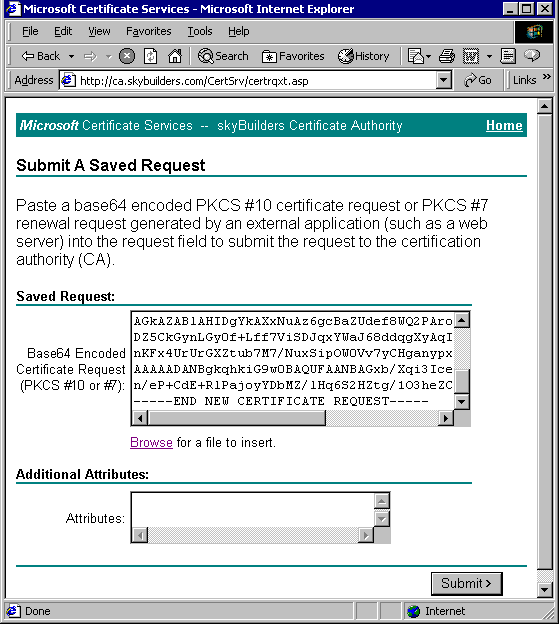
Click Submit and close browser.
From the Start Bar open Administrative Tools, then Certification Authority:
You should see your newly requested Certificate under "Pending Requests".
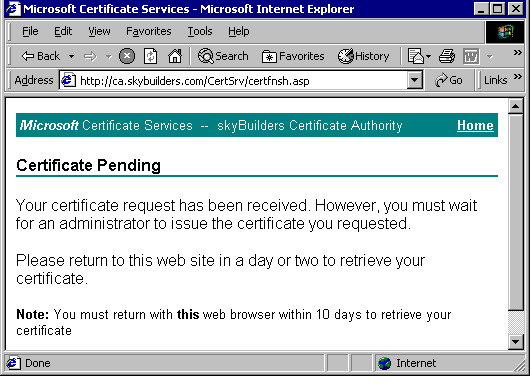
V. Backing up the Certificate
NOTE: This section not written and does not as yet have screenshots!
It is important to backup a site certificate onto a medium different that the hard drive from which a web site is serving. The importatnce of doing this should be part of a strategy to rebuild or restore a secure web site that has ceased to function.
IMPORTANT NOTE: The certificate backup must be performed before a certificate is actually installed. That is, this must be done while the certificate is still classified as pending, but after the certificate has been retrieved form the certificate vendor. This is a little confusing as the classification of pending is used even though certificate request is no longer pending and the certificate has technically been issued by the vendor. However, Microsoft considers the certificate to pending until it has been installed.
VI. Installing the Certificate
Installing the certificate is similar the certificate request process. It is also done through the IIS properties interface, Directory Security tab, of the web server site to which the certificate will be applied. As before, the Certificate Wizard is invoked. This part of the installation is referred to as "processing the pending request".
Notice how Certificate Wizard contains language about a pending request associated with the particular web site affected.
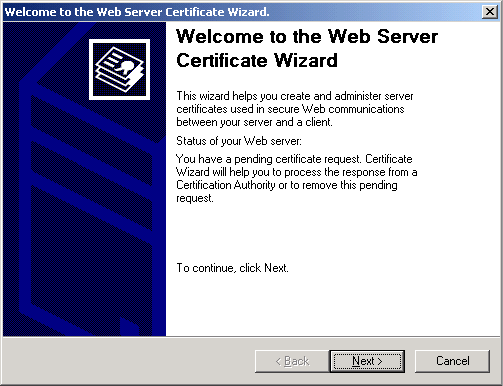
Click Next to actually continue the certificate installation.
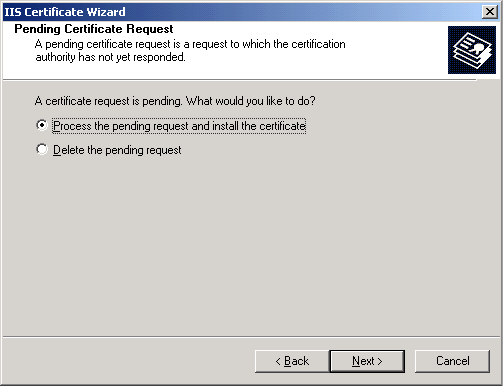
Then browse to the location and name of the actual certificate, named in this case as it was recieved.
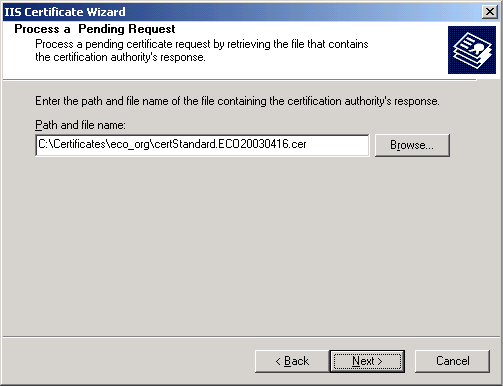
Observe the certificate details. Pay particular attention to the certificate expiration date.
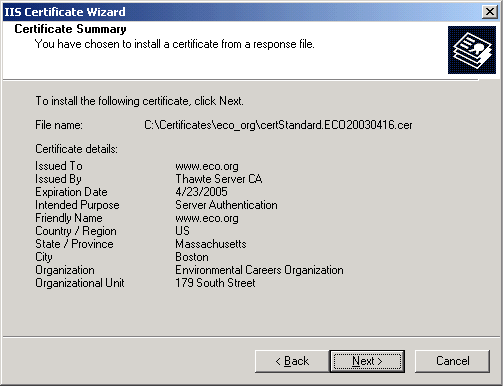
Finally click the Finish button to complete the installation.
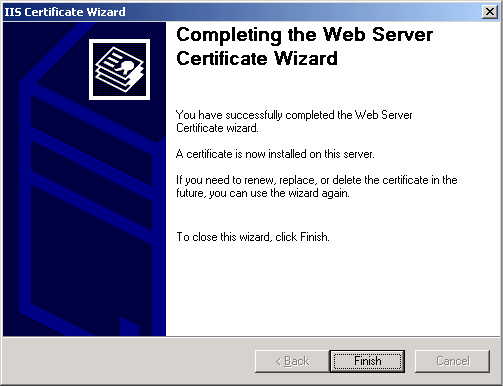
The certificate is now ready to be used. It a good idea once again open the IIS properties interface, but this time the Web Site tab, of the web server site to which the certificate will be applied. Make sure that the SSL (secure socket layer) port is not disabled (grayed out).
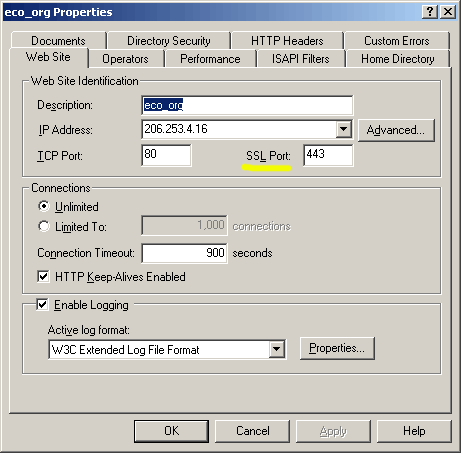
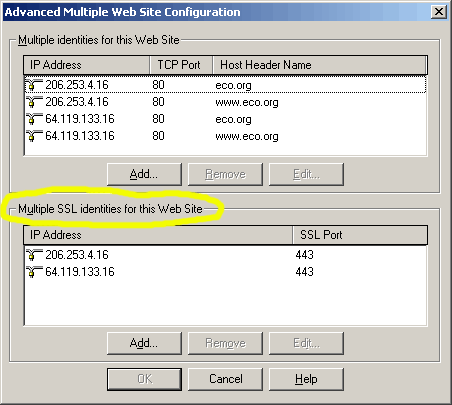
Also click on the Advanced button from the Web Site tab to set and ensure the appropriate IP bindings to the site's secure port.
This completes a Windows 2000 based web site certificate installation.
